
For companies whose staff analyze spreadsheets with ChatGPT, Copilot, Claude or Gemini: how reliable that is, what each tool accepts and how to check a result.
What you'll learn
- How often AI completes real spreadsheet tasks, measured by an independent benchmark
- What file types, sizes and plans ChatGPT, Copilot in Excel, Claude and Gemini support
- How each tool calculates, and how to see the formula or code behind an answer
- Where AI goes wrong with spreadsheets, according to the benchmark's authors and the vendors
- Six checks to run before an AI spreadsheet answer goes into a decision
AI tools can analyze Excel files, and they still get a large share of spreadsheet work wrong. On SpreadsheetBench 2, a June 2026 benchmark built from real financial reports and multi-sheet workbooks, the best AI model completed 34.89% of tasks, and only 12% of debugging tasks. On simpler real-world spreadsheet tasks, Gemini in Google Sheets scored 70.48% and Copilot in Excel 57.20%. Microsoft and Google both tell users not to rely on the output for financial decisions. This guide sets out what ChatGPT, Copilot in Excel, Claude and Gemini accept, how each one calculates, where they go wrong, and the checks to run before a result goes into a decision.
AI assistants can open a spreadsheet, answer questions about it, write formulas and build charts. ChatGPT, Copilot in Excel, Claude and Gemini in Google Sheets all do this in October 2026. None of them does it reliably enough to skip checking.
This guide puts the vendors' documented limits next to the only independent measurements of AI on real spreadsheets, and ends with the checks that catch the common mistakes.
Can AI analyze your Excel files reliably?
Not reliably enough to use a result unchecked. On SpreadsheetBench, a benchmark of 912 tasks taken from real-world spreadsheet questions, the four major assistants completed between 42.90% and 70.48% of tasks, as reported between July 2025 and March 2026.[1] On SpreadsheetBench 2, published on 29 June 2026 and built from financial reports and corporate filings, the best AI model completed 34.89% of tasks, and debugging accuracy was "as low as 12.00%".[2]
| Tool on SpreadsheetBench (912 real-world tasks) | Tasks completed | Reported | Checked by the benchmark team |
|---|---|---|---|
| Gemini in Google Sheets | 70.48% | March 10, 2026, by Google | Yes |
| Copilot in Excel (Agent Mode) | 57.20% | September 29, 2025, by Microsoft | No |
| ChatGPT Agent with .xlsx | 45.50% | July 17, 2025, by OpenAI | No |
| Claude Files (Opus 4.1) | 42.90% | September 29, 2025, by Anthropic | No |
Read the scores with their dates. The benchmark team lists results it did not check itself as "unverified" and names OpenAI and Microsoft among the outside parties that evaluated them.[1] Several entries predate the models these products run on today. The top entry on the same table, a specialist agent from Kingsoft Office, reached 83.11% in June 2026.[1]
The second benchmark is the one closer to company work. Each of its 321 tasks averages 11.8 worksheets and 593.5 cell changes, and domain experts checked the answers.[2] On the benchmark's leaderboard, Claude Opus 4.6 completed 34.89%, GPT-5.2 26.79% and Gemini 3.1 Pro 23.68% under the same research setup in March 2026.[1] The best specialist product listed reached 54.51%.[1]
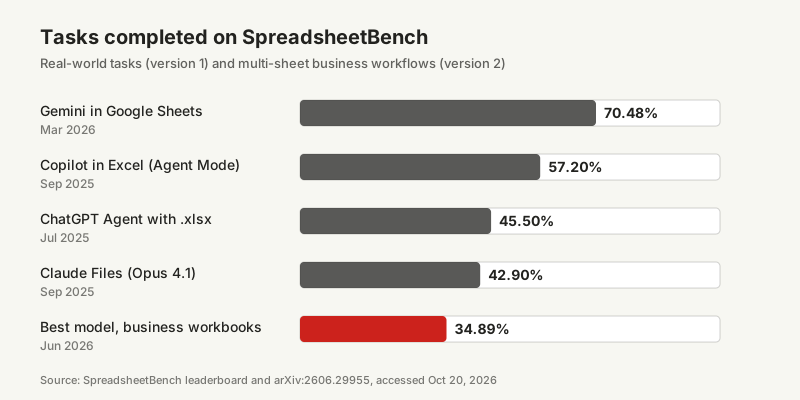
On real business workbooks, the best AI model finished about one task in three. That is a reason to check, not a reason to stop using it.
These numbers do not say how a tool will do on your file. They say how often it finished a realistic task correctly when someone checked. Our guide to how reliable AI agents are on real work covers why benchmark scores and your own results can differ.
What does each AI tool accept?
Each tool accepts spreadsheets on different terms. ChatGPT takes XLSX, XLS, CSV and TSV files up to about 50 MB, depending on the size of each row, according to OpenAI's help center in October 2026.[3] Claude needs a setting switched on before it takes XLSX at all, Gemini works best after an Excel file is saved as a Google Sheet, and Copilot in Excel works inside the workbook and depends on the Microsoft 365 licence.[8][10][6]
| Tool | Accepts | Size and count limits | Condition |
|---|---|---|---|
| ChatGPT | XLSX, XLS, CSV, TSV | About 50 MB per spreadsheet; 80 uploads every 3 hours; Free plan 3 uploads a day; 5 to 40 files per project by plan | OpenAI may lower limits at peak times[3] |
| Copilot in Excel | The open workbook, and other workbooks in OneDrive, SharePoint or on your computer | Not stated as a file size | Needs an eligible Microsoft 365 or Copilot licence; editing only with automatic calculation[5][6] |
| Claude | XLSX, CSV and other document types | 500 MB per file and 20 files per chat; 30 MB per file in a project | XLSX only with code execution and file creation switched on[8] |
| Claude for Excel (add-in) | The open workbook, including multi-tab files | Not stated | Claude Pro, Max, Team or Enterprise plan[9] |
| Gemini in Google Sheets | Native Google Sheets | Not stated | Eligible Workspace or Google AI plan; an .xlsx file must be saved as Google Sheets first[10] |
The size limits are rarely the problem. OpenAI says a spreadsheet "may upload successfully but still be too large, complex, image-heavy, or poorly structured for complete analysis", and that "the number and complexity of formulas" also affect processing.[4] A file that fits the limit can still be read only in part.
Scanned tables are a separate case. ChatGPT "may not reliably extract exact values" from image-based tables or scanned files, OpenAI says.[4] For scans and PDFs, see what AI can and cannot read from your documents.
How does each AI tool calculate?
The tools calculate in different places, and that decides how you check them. As of October 2026, ChatGPT writes and runs Python code in a notebook environment for some analyses; OpenAI tells users to "review the generated code, outputs, and assumptions" before relying on a result.[4] Copilot in Excel works in the workbook itself, with Excel's tables, formulas, charts and PivotTables, so its work stays editable in the file.[5]
- ChatGPT runs Python on a copy of your data. The code is visible. The Python environment cannot fetch outside data or call other systems.[4]
- Copilot in Excel has three modes as of October 2026: edit, which changes the workbook directly; plan, which proposes steps first; and chat, which keeps answers in the side pane.[6] It can use Claude or GPT models; Claude needs your administrator to enable Anthropic as a Microsoft sub-processor.[6]
- Claude for Excel works in the open workbook and, in Anthropic's description, explains calculations "with cell-level citations" and tracks its changes.[9]
- Gemini in Google Sheets creates formulas, tables, pivot tables and charts in the sheet, and has a "Show code" option for the code behind an output.[10]
One Excel feature is already gone. Microsoft retired the COPILOT cell function, a preview that put AI answers into individual cells, on September 14, 2026.[7] Cached results stay in old workbooks, but any cell that recalculates now shows #NAME?.[7] Workbooks built on it need rebuilding.
The practical difference: with Copilot or Gemini you check formulas in the sheet; with ChatGPT and Claude's chat you check code and outputs in the conversation. Either way, the method is visible. Use that.
Where does AI go wrong with spreadsheets?
AI goes wrong with spreadsheets mostly before it calculates: it does not look at enough of the workbook and it changes the wrong cells. The SpreadsheetBench 2 authors found that "insufficient spreadsheet inspection and incorrect target-cell selection are the dominant bottlenecks" across the models they tested in June 2026.[2]
A spreadsheet that uploads is not a spreadsheet that was fully read. OpenAI states that a file can upload successfully and still be too large or complex for complete analysis, and the benchmark's authors found that models fail most often by not inspecting the workbook closely enough.
The vendors list the conditions that make this worse:
- Layout. OpenAI advises one table per sheet, column headers in the first row, one row per record, and no empty rows or columns that split the data.[4] Company workbooks often have none of these.
- Formulas. The number and complexity of formulas affect how much ChatGPT can process.[4]
- Calculation settings. Copilot in Excel edits only when calculation is set to automatic; workbooks set to manual block it.[6]
- File state. A file checked out in SharePoint, or saved as Strict Open XML, gives Copilot an "Unsupported file state" message.[6]
- Language. Microsoft says Copilot was "trained on sources predominantly in English" and may not perform as well with prompts or data in other languages.[6]
- Session memory. Gemini in Sheets loses its conversation when you reload the browser or reopen the file; insert outputs into the sheet to keep them.[10]
Microsoft's own advice is blunt: "Avoid using Copilot for decisions in sensitive areas such as finance, legal, or medical topics."[6] Google writes: "Don't rely on Gemini features as medical, legal, financial or other professional advice."[10] Both vendors sell these tools for business spreadsheets. Both tell you not to trust the output on its own.
What happens to the data in your spreadsheet?
A spreadsheet handed to AI can travel further than the person asking expects. As of October 2026, saved Copilot changes are visible to everyone with access to the workbook, Gemini warns when a sheet is shared outside your organization, and Microsoft's store lists the Claude add-in as able to send data over the internet.[6][10][9]
- Changes are shared. When you save Copilot's changes, anyone with access to the file sees them, including co-authors in the same session.[6]
- Outside sharing raises a warning. Gemini in Sheets warns that content it adds "may be visible to users outside your domain" when the file has outside viewers or was created outside your organization.[10]
- Add-ins send data out. Microsoft's store lists Claude for Excel as an app that "can read and make changes to your document" and "can send data over the Internet".[9]
- The plan sets the terms. Whether the content is used to train models depends on the plan and its settings, not on the spreadsheet feature: see ChatGPT's plans under the GDPR, Copilot's checks before switch-on and where AI providers process data.[3]
Which AI tool fits your spreadsheets?
Choose the tool by where your spreadsheets already live, because each one works best on its own home ground. In the vendors' documentation as of October 2026, Copilot works inside an Excel workbook, Gemini inside a Google Sheet, and ChatGPT and Claude on a copy you upload to a chat.[6][10][3][8]
| Your situation | The documented fit | What to watch |
|---|---|---|
| Files in Excel, OneDrive or SharePoint | Copilot in Excel, in the workbook | Licence tier; automatic calculation; changes visible to co-authors[6] |
| Files in Google Sheets | Gemini in Google Sheets | .xlsx files must be converted first; history is lost on reload[10] |
| A one-off export or CSV | ChatGPT or Claude, on an uploaded copy | About 50 MB in ChatGPT; XLSX in Claude only with code execution on[3][8] |
| Large multi-tab models in Excel | Claude for Excel or Copilot in Excel | Paid plans; both change the open file[9][6] |
The table describes fit, not quality. No vendor publishes accuracy figures for your kind of file, and the benchmark results in the first section come from different dates and setups.[1] A tool that sits where the data already is saves a copy step and keeps the work in the file, where your team can see it. That makes the checks below easier, not unnecessary.
How do you check an AI's spreadsheet answer?
Check the method, then check one number by hand. Every tool covered here shows how it reached its answer: ChatGPT shows its Python code, Copilot and Gemini write formulas into the sheet, and Claude for Excel cites cells.[4][5][9][10] The checks below follow the failure causes the SpreadsheetBench 2 authors found in June 2026 and the vendors' own advice.[2][4][6]
Work on a copy
Confirm what it read
Read the method
Recompute one figure yourself
Check which cells changed
Keep a person on decisions
The one-page version holds these checks and the limits table: Download the AI spreadsheet check (PDF).
These checks take minutes. They are faster than finding a wrong total after it has gone into a quote, a forecast or a board pack.
When should a spreadsheet process become software?
A spreadsheet process should become software when the same analysis runs every week, several people depend on it, and its numbers feed other systems or decisions. SpreadsheetBench 2 shows why an assistant is a poor fit for that work: on multi-sheet business workflows averaging 11.8 worksheets, the best model completed 34.89% of tasks in June 2026.[2]
An assistant suits one-off questions: a quick summary, a first chart, a formula you then check. A recurring process is different. It needs the same steps every time, the same sources, and a record of what changed. Re-asking an assistant each week gives you a new method each week.
Software built for the process takes the exports from your systems, runs fixed calculations you can audit, flags rows that do not fit, and hands a person the result to approve. That is a custom agent or custom software, with approval steps before anything is sent. The AI can still draft and explain; the calculation that matters does not depend on it.
Frequently asked questions
Can ChatGPT analyze Excel files accurately? Sometimes. ChatGPT reads XLSX, XLS, CSV and TSV files up to about 50 MB and calculates by writing and running Python code you can inspect. On the SpreadsheetBench benchmark, OpenAI reported 45.50% of real-world spreadsheet tasks completed by ChatGPT Agent with .xlsx files in July 2025. Check the code and recompute one total before using the result.
Is Copilot in Excel better than ChatGPT for spreadsheets? On one benchmark, yes. Microsoft reported 57.20% of SpreadsheetBench tasks completed by Copilot in Excel Agent Mode in September 2025, against 45.50% that OpenAI reported for ChatGPT Agent in July 2025. Copilot edits the workbook with Excel's own formulas and PivotTables, so the work stays visible in the file. Microsoft still advises against using it for finance decisions.
What is the file size limit for spreadsheets in ChatGPT? About 50 MB, depending on the size of each row, according to OpenAI's help center in October 2026. You can upload up to 80 files every three hours, and Free users three files a day. OpenAI adds that a file may upload successfully and still be too complex for complete analysis.
Which AI is best for analyzing Excel data? No tool is reliable enough to use unchecked. On SpreadsheetBench's real-world tasks, Gemini in Google Sheets had the highest verified score of the four major assistants at 70.48% in March 2026. On multi-sheet business workflows, the best model completed 34.89% of tasks in June 2026. Choose by where your files live, then check every result.
Notes
- SpreadsheetBench leaderboard, Version 1 (912 tasks) and Version 2 tables, accessed October 20, 2026. Used for the product and model scores, dates, organizations and verified/unverified status.
- Zhu, Zhang, Ma, Zhang et al., SpreadsheetBench 2: Evaluating Agents on End-to-End Business Spreadsheet Workflows, arXiv:2606.29955, June 29, 2026, accessed October 20, 2026. Used for the task count, workbook size, best-model and debugging results, and the failure causes.
- OpenAI Help Center, Uploading files and audio to ChatGPT, accessed October 20, 2026. Used for spreadsheet formats, size and upload limits, project limits and data use.
- OpenAI Help Center, Data analysis with ChatGPT, accessed October 20, 2026. Used for the Python environment, preparation advice, incomplete analysis and scanned tables.
- Microsoft Support, Get started with Copilot in Excel, accessed October 20, 2026.
- Microsoft Support, Frequently asked questions about Copilot in Excel, accessed October 20, 2026. Used for licences, models, modes, languages, limitations, the calculation setting and file-state errors.
- Microsoft Support, COPILOT function, accessed October 20, 2026.
- Anthropic Help Center, Upload files to Claude, July 23, 2026, accessed October 20, 2026.
- Microsoft Marketplace, Claude by Anthropic for Excel, accessed October 20, 2026.
- Google Docs Editors Help, Collaborate with Gemini in Google Sheets, accessed October 20, 2026.